Photography Tips

Photography Tip use Unsharp Mask for sharpening in Photoshop

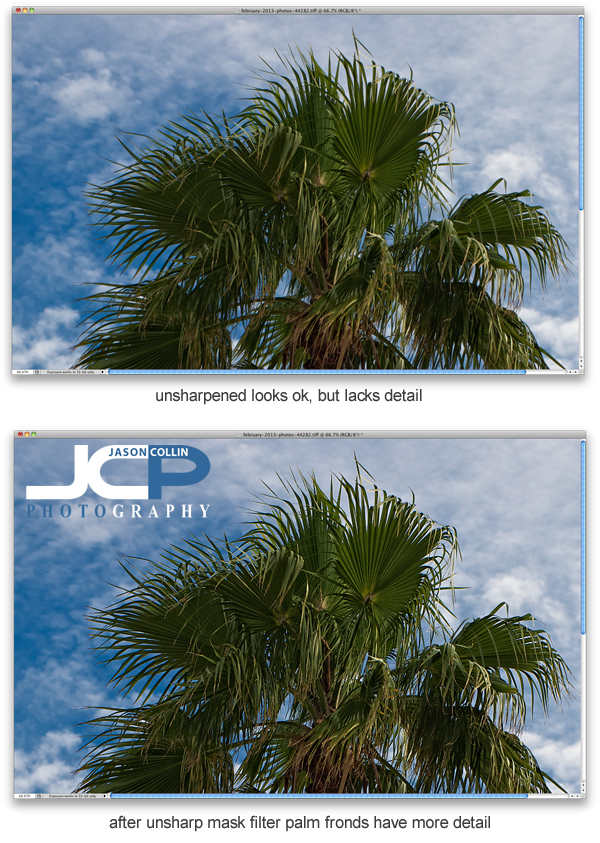
Sharpening is a key part of editing digital photos and perhaps one that goes overlooked due to thinking sharpening is not needed.  On every shot I edit, I use the Unsharp Mask filter in Photoshop (I still use CS5).  In the above example of a cabbage palm tree, I did all my usual editing except sharpening.  The unsharpened image may look fine, but I know it can look better.  In the sharpened version much more detail is visible in the palm fronds, especially on the edges.  Another photography tip within a tip, I did all other editing first because sharpening should be the last thing done when editing an image.
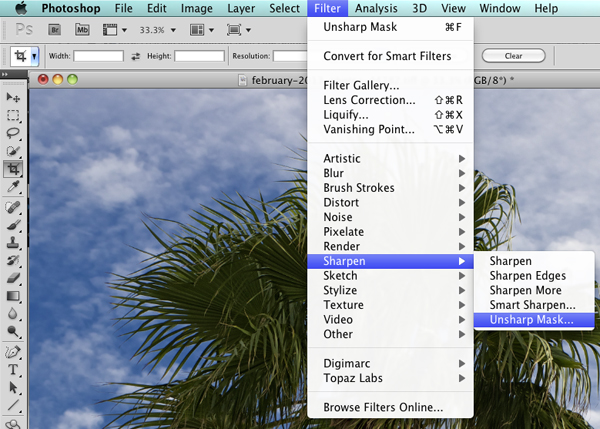
To find Unsharp Mask in Photoshop go into the Filter menu, then Sharpen, and there you will find Unsharp Mask.  I kow it sounds totally crazy to use something called unsharpen to sharpen, but that is just one of the thousands of quirks you either find charming about Photoshop or infuriating!  Note that if you used Unsharp Mask already, on a Mac you can just hit CMD-F to apply the same sharpening to the current photo you are working on.

You can see the settings I use in the Unsharp Mask filter in the above screenshot.  Radius and Threshold never change and are at settings I found I liked, though I learned these from another photographer and fine tuned them a bit.  The only setting of the three I change when applying the Unsharp Mask filter is the Amount percent.  For a very large majority of my photographs, I use 60%.  For portraits (single subject) I may use less.  For HDR shots, I may use more.  Each camera and lens may dictate more or less sharpening to be used.  

Try out the Unsharp Mask filter and let me know what you think in the comments below!
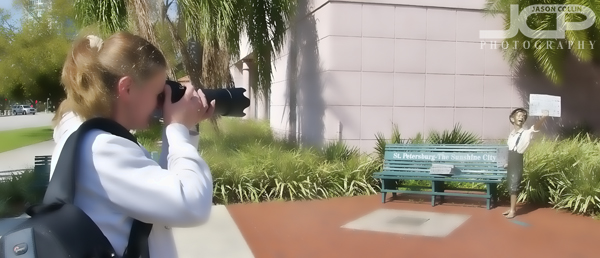
Nikon D7000 1-on-1 DSLR Photography Lesson in St. Petersburg Florida with Patricia

Practicing DoF with a 300mm lens during our photography lesson in St Petersburg Florida

On a warm February Saturday morning I met Patricia with her new Nikon D7000 in downtown St. Petersburg for our first of four 1-on-1 DSLR Photography Lessons.  She was very new to DSLR cameras, and photography in general, but my 5-step process for learning how to make a well exposed and sharp photograph works for total beginners as well as more experienced photographers.  We began the lesson with a lengthy tour of how to use her Nikon and in particular how to use the finger and thumb dials to make adjustments to the critical aperture and shutter speed settings.

In the second half of the lesson we wondered around the waterfront area practicing how to control DoF, in particular, how to make the background disappear into a nice, creamy bokeh.  This skill is very useful for portraits especially, as well as just adding a creative look to an image overall.  Using the paperboy statue out in front of the St. Petersburg Museum of History I showed Patricia how focal length and distance from the subject matters even more than using a large aperture in creating bokeh.  

For our next lesson we will head out to The Pier!

Nikon D3100 1-on-1 DSLR Photography Lesson St. Petersburg Florida with Jason

Jason using his Nikon D3100 tripod mounted for some long exposure shots on The PierWhile it is still open and still standing, I will still be using The Pier as a great location for my 1-on-1 DSLR Photography Lessons, and really cannot imagine what it will be like to not have it available come May 2013.  Friday evening I met Jason with his Nikon D3100 in downtown St. Petersburg.  He specifically wanted to practice long exposure night photography, which is fine by me as it is one of my favorite kinds.  We made our way out to The Pier and got setup on the open roof viewing area.  This type of photography of course requires a tripod because as by the end of the lesson we were using 30-second exposures, and even while there was still plenty of light in the sky (but no sun), exposures were in the 1 to 2 second range.  

In a way, night photography is kind of simple: put camera on tripod, leave shutter open, done.  Of course there are things that can be done to improve one's night photography, especially related to placement of the horizon and exactly how long to leave the shutter open.  These were the things we focused on mostly during our night photography lesson.  I look forward to seeing Jason's future long exposure shots!

Canon 50D 1-on-1 DSLR Photography Lesson with Ariel in St. Petersburg Florida

Ariel showing good form shooting with her Canon 50D during our DSLR Photography Lesson in St. PetersburgWhen I met Ariel for our first of four 1-on-1 DSLR Photography Lessons in downtown St. Petersburg, she already had good knowledge of photography terms and concepts.  I did not have to tell her that f/5.6 was a larger aperture than f/11 for example.  However, I still began the lesson with my 5-step process for making a well exposed and sharp shot in any shooting conditions.  I believe that having a set way of getting the correct exposure and focus is the key to being able to make consistently satisfying photographs.  After all, if you make a good shot, you want to know why so you can do it again, right?  

Ariel had the Canon 70-200mm f/4 L lens which we used mostly in the second half of our lesson.  I am always cautious about using a lens at its largest aperture as they can be softer than just one stop down.  As the late afternoon began to fade, being able to have a larger aperture like f/4 available was a plus, and we did a direct test to see if any sharpness was lost at f/4 compared to f/5.6.  I did not see any and was thus impressed and for any Canon shooters out there looking for a good, budget 70-200mm lens, this lens sells for about $700, which I consider a great bargain and I recommend it.

I will be meeting Ariel again on Monday to continue our photography lessons!

Photography Tip - Format memory cards to erase photos

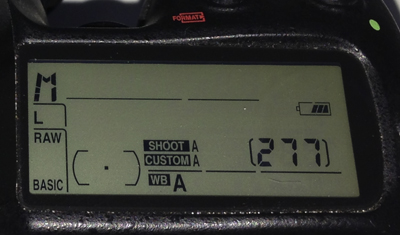
277 photos remaining on this memory card before formattingThis photography tip is about how to get photos off of your memory card once you have downloaded them, and backed them up!  The best and fastest way to do this is to format the memory card right in your camera.  This will virtually instantly delete every photo and also keep the good Nikon (or Canon, etc) formatting on your memory card reducing the chance for errors.  Many Nikon cameras make it very easy to format memory cards.  On my D300 there are two buttons you hold simultaneously (see the red format logo in the photo above).

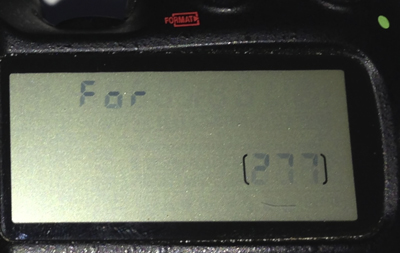
Formatting ready to be executedIf I hold the two format buttons for a few seconds, then the screen will flash "For" indicating the camera is ready to format the memory card.

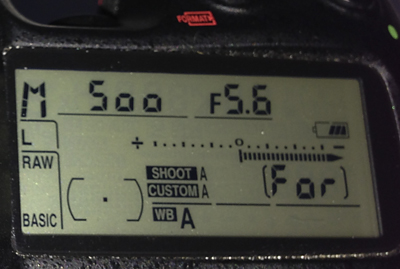
Formatting of the memory card is being done in cameraIf I press both format buttons again that will activate formatting and in the place of the remaining number of photos area of the screen, "For" will briefly be displayed.

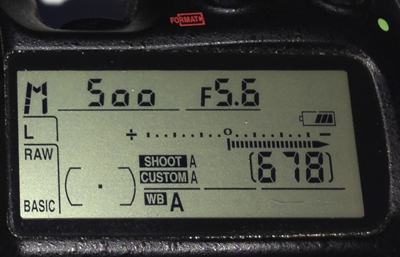
After formatting the memory card there are now 678 shots leftIn this case formatting the memory card took my remaining photo count from 277 to a maximum available 678.  This whole process just takes a few seconds and helps keep your memory cards in good working condition.

Canon T3i 1-on-1 DSLR Photography Lesson in downtown St. Pete Florida with Jeannie

Out on The Pier with Jeannie for our second 1-on-1 photo lesson in St. Petersburg FloridaOn yet another cool Saturday morning I met Jeannie for our second of four 1-on-1 DSLR Photography Lessons in St. Petersburg Florida.  This time we went out to The Pier with her Canon T3i to photograph pelicans, and ended up finding a sailboat race and a fitness competition!  When The Pier closes in May, I will certainly loose out on one of my favorite locations for photography lessons.

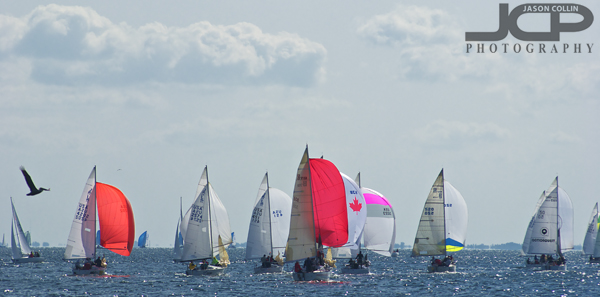
A sailboat race like this is just one of the many things that can be photographed from The Pier in downtown St. Petersburg

During this second photography lesson I helped Jeannie reinforce what she learned during our first lesson so that she can become more and more comfortable with just the physical process of getting her camera set eventually allowing for maximum concentration to be placed on composition and creativity rather than the technical aspect of getting a shot.  We made great progress!

Photography Tip - Intro to the Histogram

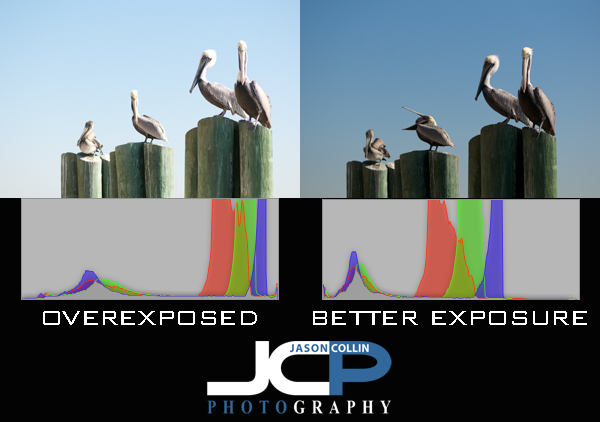
The histogram is a very useful way of checking and confirming exposure, especially out in the field.  It may just look like a bunch of strange squigly lines or a series of jagged mountains, but the histogram tells you exactly what your photograph really looks like in terms of exposure and color.  Since it is often hard to see the camera's review screen in direct sunlight to judge exposure, the histogram for a photographer is like a pilot flying an airplane by using only instruments.  You do not even need to see the photograph to tell if it is a dark image, a bright one, or even a very colorful one.  Essentially, the histogram looks like a rectangular box representing 256 shades of gray or individual colors, or all of them (see the histograms above showing grayscale and RGB color as Aperture 3 represents the histogram).  Black is on the left edge and white is on the right edge.  The more data to the left, means the darker an image is, and potentially underexposed.  The more date to the right means a brighter image, and possibly an overexposed ones.

It is usually best to try and get as much of the data in the center forming a nice mountain, with no spikes at either the far left or far right edges.  In the samples above, the left histogram has most of its data on the right side, indicating the photo is a bright exposure, as can be confirmed by looking at the photo itself.  The histogram on the right is much more balanced and a more even exposure, as seen in the photo showing a bluer sky and better whites in the pelicans' heads.

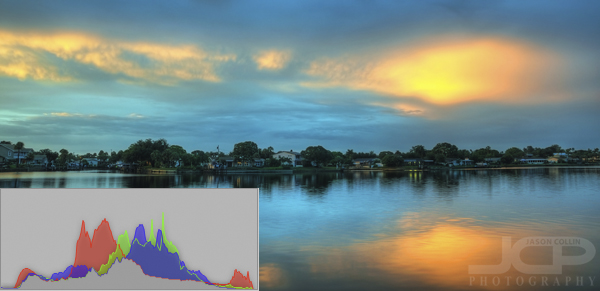
The above image of Smacks Bayou (as seen from just off my back patio) has a histogram that is about as ideal as it can get.  The majority of the data for grayscale and RGB color is in the middle-center and there is a lot of range in those colors.  The taller the peaks, the more of that particular color or shade of gray.  There are also no spikes at either far edge of the histogram.